You don't have to enter your seasonal prices again every year. With Copy from last year you carry them over, and with Copy to another calendar you put the same prices on another property.
languageThe screenshots show Bookedin in Dutch. Switch the app to English with the language menu at the top right; the button names in this guide are the English ones.
What you need
checkA calendar with prices.
1
Copy last year's prices
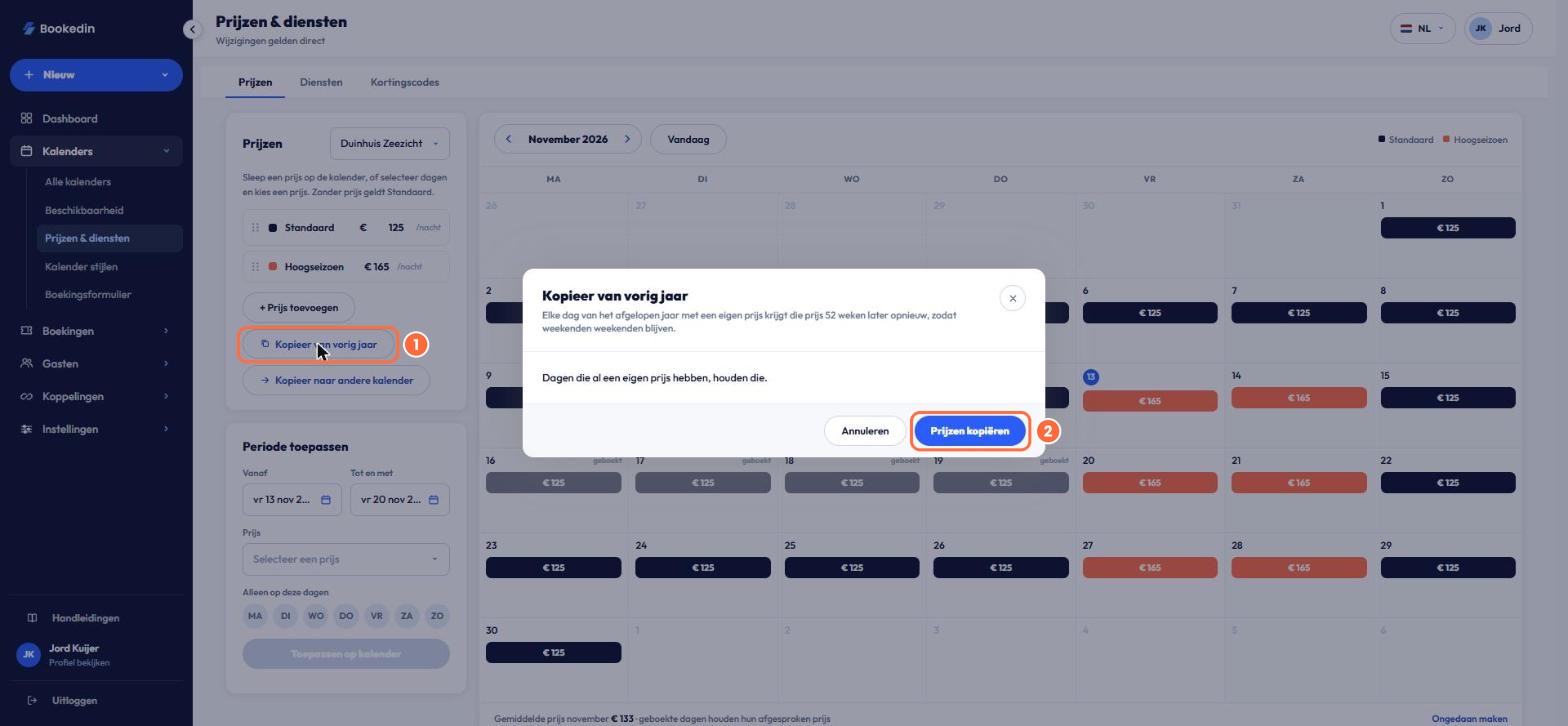
In the menu, go to Calendars and then Prices & services. Click Copy from last year.
1
Copy from last year. Every day of the past year with its own price gets that price again 52 weeks later, so weekends stay weekends. Days that already have their own price keep it.
2
Click Copy prices.
2
Copy your prices to another calendar
Click Copy to another calendar.
1
Copy from. The calendar with the prices.
2
Copy to. Tick the other calendars.
3
Which items.Prices (the prices with their name, amount and colour), Prices on the calendar (which upcoming day has which price; those days are replaced) and Standard price.
Then click Copy.
check_circle
Done! Your prices are ready. Check the calendar and adjust a single day where needed.