Homechevron_rightGuideschevron_rightView scheduled and sent emails
Guests and email
View scheduled and sent emails
schedule2 min readupdateUpdated 13 November 2026
View scheduled and sent emails
Under Email templates, two tabs show what goes out to your guests. Scheduled emails shows which templates are sent automatically, and Sent emails shows what has already been sent and what failed.
languageThe screenshots show Bookedin in Dutch. Switch the app to English with the language menu at the top right; the button names in this guide are the English ones.
What you need
checkA calendar with at least one email template.
1
View your scheduled emails
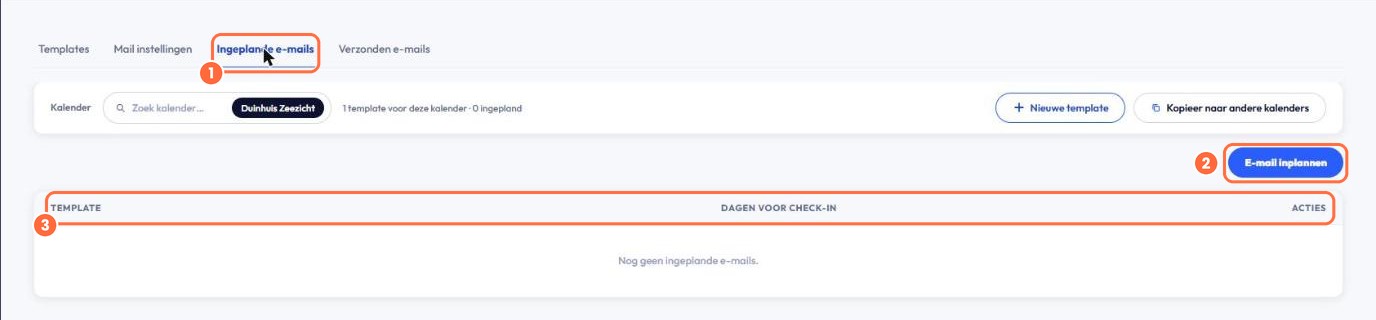
In the menu, go to Guests and then Email templates. At the top, under Calendar, choose the calendar. Click the Scheduled emails tab.
1
Scheduled emails.
2
Schedule email. Schedule a new template.
3
The list, with the template, the number of days before check-in and the actions on each row.
2
View your sent emails
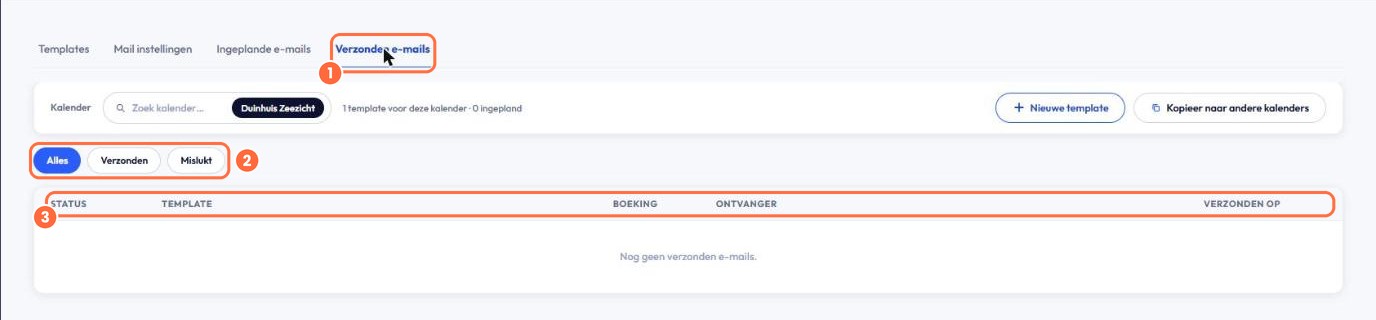
Click the Sent emails tab.
1
Sent emails.
2
All, Sent or Failed. Filter by result.
3
The list, with the status, template, booking, recipient and time of sending.
check_circle
Done! You can see exactly which emails your guests receive and whether they arrived.